How to Deploy Hermes Agent – Open-Source Self-Hosted AI Agent
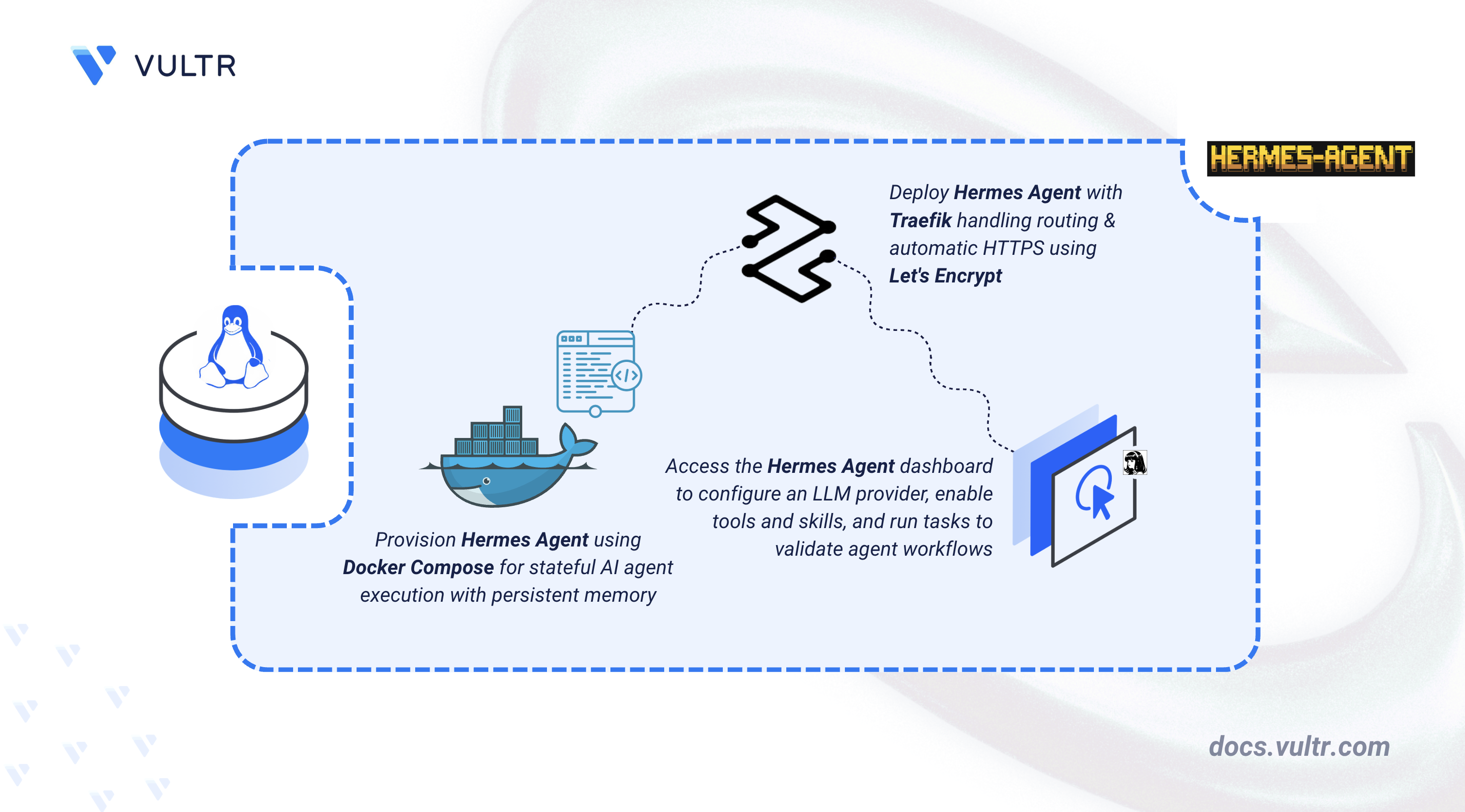
Hermes Agent is an open-source, self-hosted AI agent developed by Nous Research. It features persistent memory, autonomous skill creation, and multi-platform messaging integrations including Telegram, Discord, Slack, and WhatsApp. Unlike chatbot wrappers or IDE-bound copilots, Hermes Agent runs continuously on your server, learns from interactions, and improves its capabilities over time.
This article explains how to deploy Hermes Agent on a Linux server using Docker Compose with Traefik for automatic HTTPS. It covers directory setup, environment configuration, LLM provider setup (including free access via Nous Portal and optional integration with Vultr Serverless Inference), and demonstrates the application by creating a task and verifying persistent memory.
Prerequisites
Before you begin, you need to:
- Have access to a Linux-based server as a non-root user with sudo privileges.
- Install Docker and Docker Compose.
- Create a DNS A record pointing to your server's IP address (for example,
hermes.example.com). - (Optional) Have an API key for a model provider such as OpenAI, Anthropic, or OpenRouter. You can use Nous Portal for free access via OAuth, or configure Vultr Serverless Inference as shown later in this article.
Set Up the Directory Structure, Configuration, and Environment Variables
Hermes Agent stores all user data including configuration, API keys, sessions, skills, and memories in a persistent data directory. The Docker container mounts this directory to preserve state across restarts and upgrades.
Create the project directory with subdirectories for persistent data.
CONSOLEdata/: Persists Hermes Agent configuration, sessions, skills, and memory files.
Navigate to the project directory.
CONSOLECreate the environment file.
CONSOLEAdd the following configuration. Replace
hermes.example.comwith your domain name andadmin@example.comwith your email address.INISave and close the file.
Deploy with Docker Compose
Docker Compose orchestrates the Hermes Agent gateway, dashboard, and Traefik reverse proxy. The gateway handles messaging integrations and agent execution, while the dashboard provides a web interface for monitoring and configuration. This setup extends the official Docker deployment guide with Traefik for automatic HTTPS and basic authentication.
Generate a hashed password file for Traefik basic authentication. Replace
DASHBOARD_USERNAMEwith your preferred username andSTRONG_DASHBOARD_PASSWORDwith a secure password.CONSOLECreate the Docker Compose file.
CONSOLEAdd the following configuration.
YAMLSave and close the file.
In the above manifest:
- traefik: Serves as the reverse proxy and TLS termination point with automatic Let's Encrypt certificate provisioning. Mounts the
.htpasswdfile for basic authentication. - hermes: Runs the Hermes Agent gateway that handles messaging integrations and agent execution.
- dashboard: Provides a web interface for monitoring agent activity, viewing sessions, and managing configuration. The
--insecureflag allows binding to0.0.0.0, which is safe because Traefik handles HTTPS. Thebasicauth.usersfilelabel configures basic authentication for dashboard access. - volumes: The
./datamount persists all Hermes Agent state including OAuth tokens from Nous Portal. Theletsencryptvolume stores TLS certificates.
- traefik: Serves as the reverse proxy and TLS termination point with automatic Let's Encrypt certificate provisioning. Mounts the
Build and start all services in detached mode.
CONSOLEVerify all services are running.
CONSOLEOutput:
View the logs for the services.
CONSOLEFor more information on managing a Docker Compose stack, see the How To Use Docker Compose article.
Access and Configure Hermes Agent
After deployment, configure your LLM provider and access the dashboard.
Configure your LLM provider using the
hermes modelcommand.CONSOLESelect your preferred provider. For free access, choose Nous Portal and complete the OAuth authentication flow. You can also select OpenAI, Anthropic, OpenRouter, or other providers and enter API keys when prompted. For Vultr Serverless Inference, see the optional configuration section later in this article. The configuration is saved to the data directory and persists across container restarts.
Open a web browser and navigate to
https://hermes.example.com. Replacehermes.example.comwith your configured domain.Enter the basic authentication credentials when prompted (the
DASHBOARD_USERNAMEandSTRONG_DASHBOARD_PASSWORDyou used when generating the.htpasswdfile).Verify the dashboard displays the agent status and active sessions.
Navigate to the Config section in the dashboard to review model settings, memory preferences, and messaging integrations.
Verify the Hermes Agent Application
Testing core agent functionality confirms that memory persistence, skill execution, and the LLM integration work correctly.
Open a terminal session with the agent.
CONSOLEThis opens an interactive chat session with the Hermes Agent.
Send a test message to verify the LLM connection.
The agent responds with its capabilities and confirms the configured LLM provider (Nous Portal, OpenAI, Anthropic, or OpenRouter) is working.
Test persistent memory by asking the agent to remember information.
Exit the chat session by typing
/exitorCtrl+C, then start a new session.CONSOLEVerify memory persistence by asking about the stored information.
The agent recalls the previously stored information, confirming persistent memory is working.
Test a built-in tool by asking the agent to perform a task.
The agent uses its tools to retrieve and display the current timestamp.
Use Vultr Serverless Inference (Optional)
Hermes Agent supports custom model providers through OpenAI-compatible endpoints. Configure Vultr Serverless Inference as a model provider to access additional AI models.
Note
Hermes Agent requires a model that supports tool calling. Model availability can change over time, so verify the current supported models in the Vultr Console or through the Inference API before selecting one for Hermes.
Enable Vultr Serverless Inference in the Vultr Console and copy your API key.
Add your Vultr API key to the environment file. Replace
YOUR-VULTR-API-KEYwith your Vultr API key.CONSOLEAdd the following line:
INISave and close the file.
Edit the Hermes configuration file.
CONSOLEFind the
providers: {}line and replace it with the Vultr configuration:YAMLSave and close the file.
Restart the Hermes services to apply the new configuration.
CONSOLEStart an interactive chat session. Pass the environment file so the Vultr provider is available in the model picker.
CONSOLESwitch to a Vultr model using the model picker. Type
/modelto open the interactive picker.Select vultr from the provider list, then choose a model such as
moonshotai/Kimi-K2.6ordeepseek-ai/DeepSeek-V4-Pro.Verify the model responds correctly by sending a test message.
Output:
The agent responds with its model name and confirms it is served via Vultr, indicating the integration works correctly.
Conclusion
You have deployed Hermes Agent on a Linux server using Docker Compose with Traefik for automatic HTTPS and basic authentication for dashboard access. The setup provides a self-hosted AI agent with persistent memory, autonomous skill creation, and support for multiple LLM providers including Nous Portal (free MiMo v2 Pro access), OpenAI, Anthropic, OpenRouter, and Vultr Serverless Inference. For messaging platform integrations, scheduled automations, and advanced configuration, refer to the official Hermes Agent documentation.


0 Comments
Be the first to comment and share your perspective with the community.