How to Deploy Kestra – Open-Source Workflow Orchestration Platform
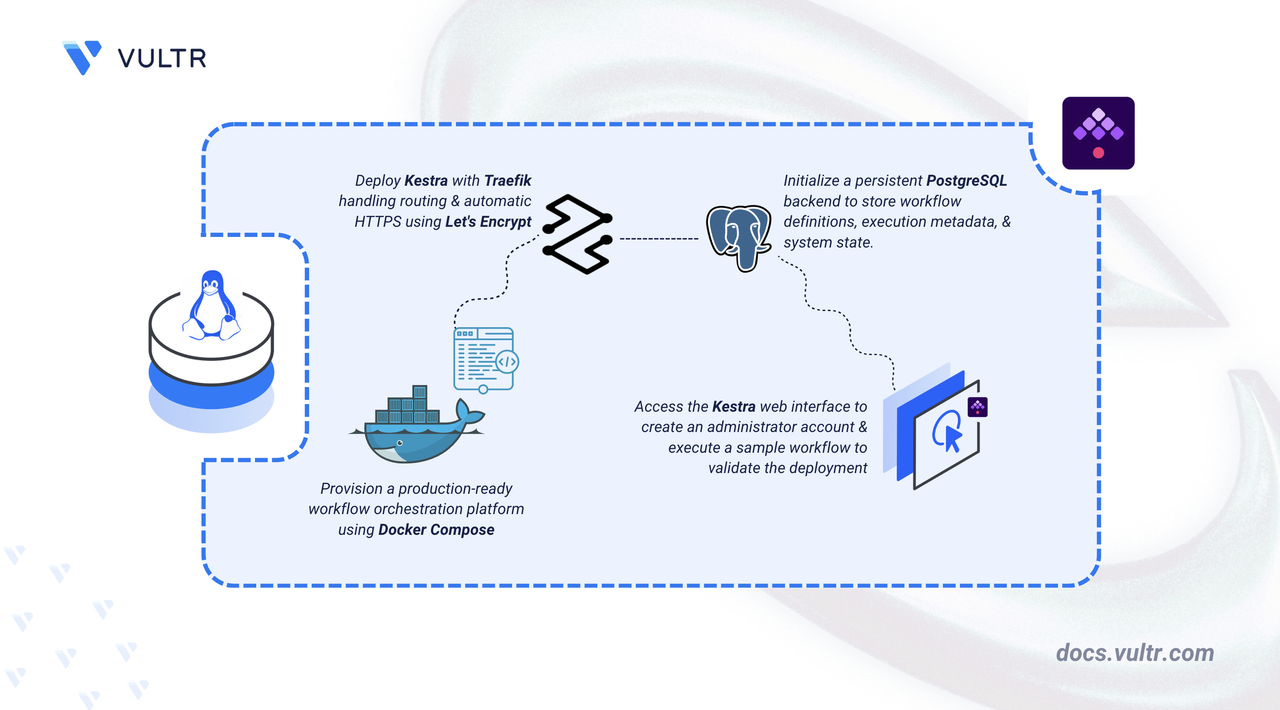
Kestra is an open-source workflow orchestration platform used to define, schedule, and monitor automated workflows. It supports declarative YAML-based configurations and provides a web interface for managing workflow executions, logs, and metadata. Kestra is used for data pipelines, infrastructure automation, and event-driven processing.
This article explains how to deploy Kestra on a Linux server using Docker Compose with a PostgreSQL backend. It covers directory setup, environment variable configuration, service deployment, and demonstrates workflow execution through the web interface.
Prerequisites
Before you begin, you need to:
- Have access to a Linux-based server (with at least 2 CPU cores and 4 GB of RAM) as a non-root user with
sudoprivileges. - Install Docker and Docker Compose.
- Configure a domain A record pointing to your server's IP address (for example,
kestra.example.com).
Set Up the Directory Structure, Configuration, and Environment Variables
Kestra requires persistent storage for workflow data and PostgreSQL database files. The following steps create the necessary directories and define environment variables for database credentials and domain configuration.
Create the project directory with subdirectories for persistent data.
CONSOLEpostgres: Persists PostgreSQL database files.kestra: Contains workflow execution artifacts and uploaded files.traefik: Holds TLS certificates obtained from Let's Encrypt.
Navigate to the project directory.
CONSOLECreate the
.envfile.CONSOLEAdd the following variables:
INIReplace:
STRONG-PASSWORDwith a secure database password.kestra.example.comwith your registered domain name.admin@example.comwith your email address for Let's Encrypt certificate notifications.
Save and close the file.
Deploy with Docker Compose
The deployment consists of three services: Traefik handles reverse proxy and TLS certificates, PostgreSQL provides persistent storage for workflow metadata, and Kestra runs the orchestration engine. Docker Compose coordinates all services and applies environment variables for database connectivity and domain routing.
Create a new Docker Compose manifest.
CONSOLEAdd the following content:
YAMLSave and close the file.
This manifest defines:
- services: Three containers work together to deliver the workflow orchestration platform with HTTPS enabled.
- traefik: Acts as a reverse proxy, routes incoming traffic to Kestra, and automatically provisions HTTPS certificates using Let's Encrypt.
- postgres: Stores workflow definitions, execution metadata, and state information.
- kestra: Runs the Kestra server and provides the web-based user interface.
- image: Uses official container images published by the upstream projects. Traefik uses a pinned version (
v3.6) for stability. - environment (postgres): Defines database name, username, and password.
- environment (kestra): Contains the
KESTRA_CONFIGURATIONblock that configures the PostgreSQL datasource connection, repository type, local storage path, and queue backend. - volumes:
./data/postgres: Persists PostgreSQL database files across container restarts../data/kestra: Stores workflow execution artifacts and uploaded files../data/traefik: Stores TLS certificates obtained from Let's Encrypt.
- ports: Ports
80and443expose HTTP and HTTPS traffic through Traefik. - labels (kestra): Configure Traefik routing rules to forward HTTPS traffic to Kestra's port 8080 and enable automatic TLS certificate provisioning for the specified domain.
- depends_on: Ensures the
kestraservice waits forpostgresto be healthy before starting. - command: Starts Kestra in standalone server mode with all core components (executor, worker, scheduler) running in a single process.
- restart: unless-stopped: Ensures containers automatically restart after failures or system reboots unless manually stopped.
- services: Three containers work together to deliver the workflow orchestration platform with HTTPS enabled.
Create and start the services.
CONSOLEVerify that the services are running.
CONSOLEThe output displays three running containers: Kestra, PostgreSQL, and Traefik with ports 80 and 443 exposed.
View the service logs to confirm all components started successfully.
CONSOLEFor more information on managing a Docker Compose stack, see the How To Use Docker Compose article.
Access the Kestra Web Interface
Kestra provides a web-based interface for workflow management and execution monitoring. The first access requires creating an administrator account that has full permissions across all workflows and system settings.
Open a web browser and navigate to
https://kestra.example.com, replacingkestra.example.comwith your configured domain.On first access, Kestra displays the Create an admin user page. Enter the following:
- Email: Your email address (used as the admin login).
- Password: A secure password with at least 8 characters, 1 uppercase letter, and 1 number.
Click Create admin user.
(Optional) Complete the Help us improve Kestra OSS form or click Skip to proceed.
Click Start Kestra UI to access the main dashboard.
Create and Execute a Sample Workflow
A sample workflow tests the integration between Kestra's orchestration engine and the PostgreSQL backend. The following steps create a basic workflow that logs a message and verify execution through the web interface.
Click Flows in the left sidebar.
Click Create to open the workflow editor.
Paste the following workflow definition.
YAMLClick Save to store the workflow.
Click Execute in the top-right corner to run the workflow.
Click Executions in the left sidebar and select the completed workflow run.
The execution detail page displays a
SUCCESSstatus, confirming that the workflow engine and database integration are functioning correctly.
Conclusion
You have successfully deployed Kestra on a Linux server using Docker Compose with PostgreSQL for persistent workflow storage and Traefik for automatic HTTPS certificate provisioning. For advanced features including scheduling, triggers, and plugin integration, visit the official Kestra documentation.


0 Comments
Be the first to comment and share your perspective with the community.