How to Deploy LibreChat – Open-Source AI Chat Platform
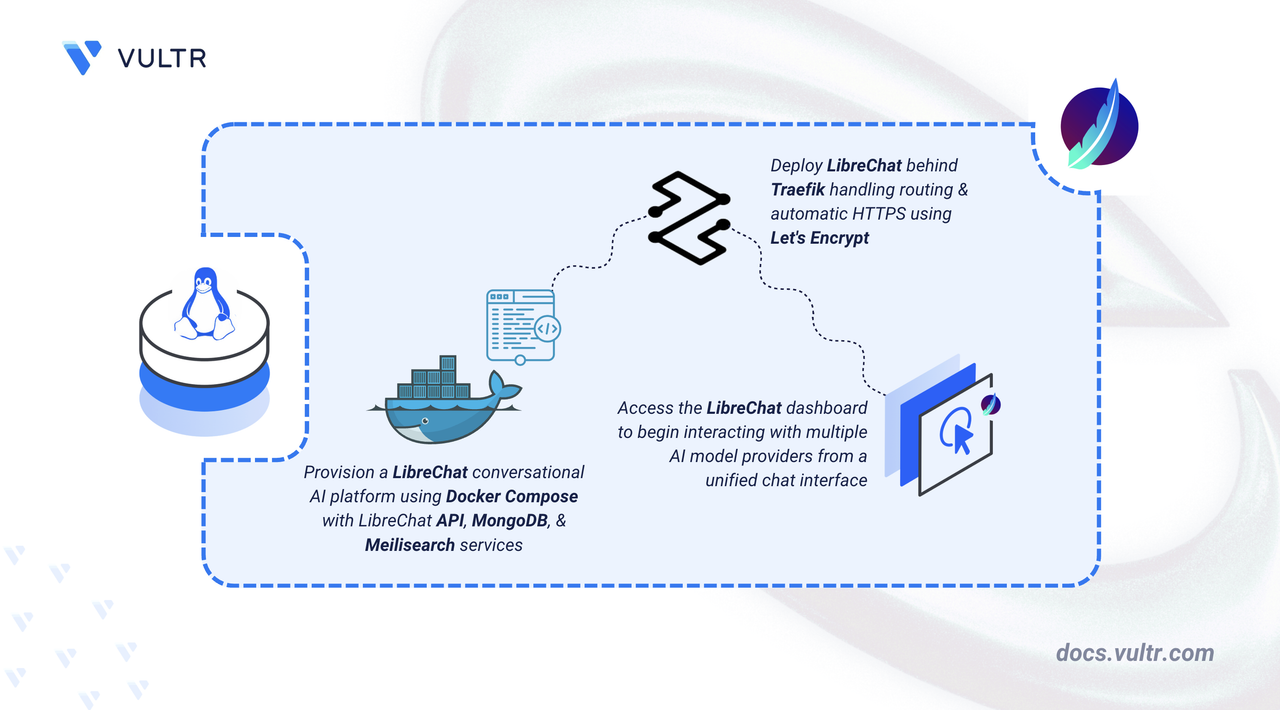
LibreChat is an open-source chat interface that connects to language model APIs from providers such as OpenAI, Anthropic, Google, and Ollama. It stores conversation history, supports multiple user accounts, and provides a single interface for switching between models and providers.
This article explains how to deploy LibreChat on a Linux server using Docker Compose with a Traefik reverse proxy that provisions a Let's Encrypt TLS certificate and exposes the interface over HTTPS.
Prerequisites
Before you begin, you need to:
- Have access to a Linux-based server as a non-root user with sudo privileges.
- Install Docker and Docker Compose.
- Create a DNS A record pointing to your server's IP address (for example,
librechat.example.com).
Set Up the Directory Structure and Environment Variables
LibreChat's GitHub repository contains the Docker Compose configuration and default environment templates. The repository includes pre-configured services for MongoDB, Meilisearch, and vector database integration.
Clone the LibreChat repository.
CONSOLENavigate to the LibreChat directory.
CONSOLECheck out the latest stable release. Replace
v0.8.3with the current version from the LibreChat releases page.CONSOLEFind the Meilisearch data directory name used by this release.
CONSOLEThe output is the directory name tied to the Meilisearch version pinned in this release. For this example, assume the output is
meili_data_v1.35.1. Use the value returned by the command in the next two steps.Create the required data directories for LibreChat services. Replace
meili_data_v1.35.1with the value from the previous step if it differs.CONSOLEThese directories store application data, search indexes, and uploaded files.
Assign ownership of the Meilisearch data directory to UID and GID
1000. Meilisearch runs as a non-root user inside its container and requires write access to this directory. Replacemeili_data_v1.35.1with the value from the earlier step if it differs.CONSOLECreate a
.envfile from the included template.CONSOLEOpen the
.envfile to set the user and group permissions. Without these values, Docker Compose logs ownership warnings on startup.CONSOLEFind and uncomment the following lines:
INISave and close the file.
Deploy with Docker Compose
The Docker Compose override file extends the base LibreChat configuration with a Traefik service that handles TLS termination and routes HTTPS traffic to the LibreChat API container.
Create the Docker Compose override file.
CONSOLEReplace
librechat.example.comwith your domain name andadmin@example.comwith your email address, then add the following configuration.YAMLSave and close the file. The override file defines the following:
api: Extends the base LibreChat API service with Traefik routing labels and mountslibrechat.yamlfor additional configuration. The labels instruct Traefik to route HTTPS requests for the configured domain to the container on port 3080.traefik: Runs the Traefik reverse proxy on ports 80 and 443. It reads the Docker socket to discover containers by their labels, redirects all HTTP traffic to HTTPS, and uses the ACME HTTP-01 challenge to request and renew TLS certificates from Let's Encrypt. Certificates are stored in./letsencrypt/acme.json.
Create an empty
librechat.yamlconfiguration file. The override file mounts this path into the API container. If the file does not exist, Docker creates a directory instead, which causes a startup error.CONSOLEStart all services in detached mode.
CONSOLEDocker Compose starts the LibreChat API, MongoDB, Meilisearch, and Traefik containers. Traefik requests a TLS certificate from Let's Encrypt using the ACME HTTP-01 challenge and begins routing HTTPS traffic to the LibreChat container on port 3080.
Verify that all containers are running.
CONSOLEVerify that all containers show a
STATUSofUp.View the service logs to confirm the stack started without errors.
CONSOLEThe output shows MongoDB initialization, Meilisearch startup, Traefik registering routes for the configured domain, and the LibreChat API listening on port 3080.
For more information on managing a Docker Compose stack, see the How to Use Docker Compose article.
Access the LibreChat Dashboard
LibreChat requires an account before the chat interface becomes accessible. The first registered user can configure AI provider API keys through the dashboard settings.
Open the LibreChat registration page in your browser. Replace
librechat.example.comwith your configured domain.The registration form loads and displays fields for your name, username, email, and password.
Note
LibreChat supports social logins through Google, GitHub, Discord, and OpenID Connect. To enable social login, set
ALLOW_SOCIAL_LOGINandALLOW_SOCIAL_REGISTRATIONtotruein the.envfile. Refer to the authentication configuration documentation for setup instructions.Enter your Full Name, Username, Email, and Password, then click Continue. LibreChat creates the account and redirects to the login page.
Enter your email and password, then click Continue. The LibreChat dashboard loads and displays the model selector and conversation interface.
Conclusion
LibreChat is now running with Docker Compose and accessible over HTTPS on your domain name. Conversation history, uploaded files, and search indexes are stored in the project directories. For more information, refer to the official LibreChat documentation.


0 Comments
Be the first to comment and share your perspective with the community.