How to Deploy Ory Kratos – Open-Source Identity and User Management System
Updated on 20 May, 2026
Deploy Ory Kratos with Docker Compose, HTTPS, PostgreSQL, and secure self-service identity management workflows.
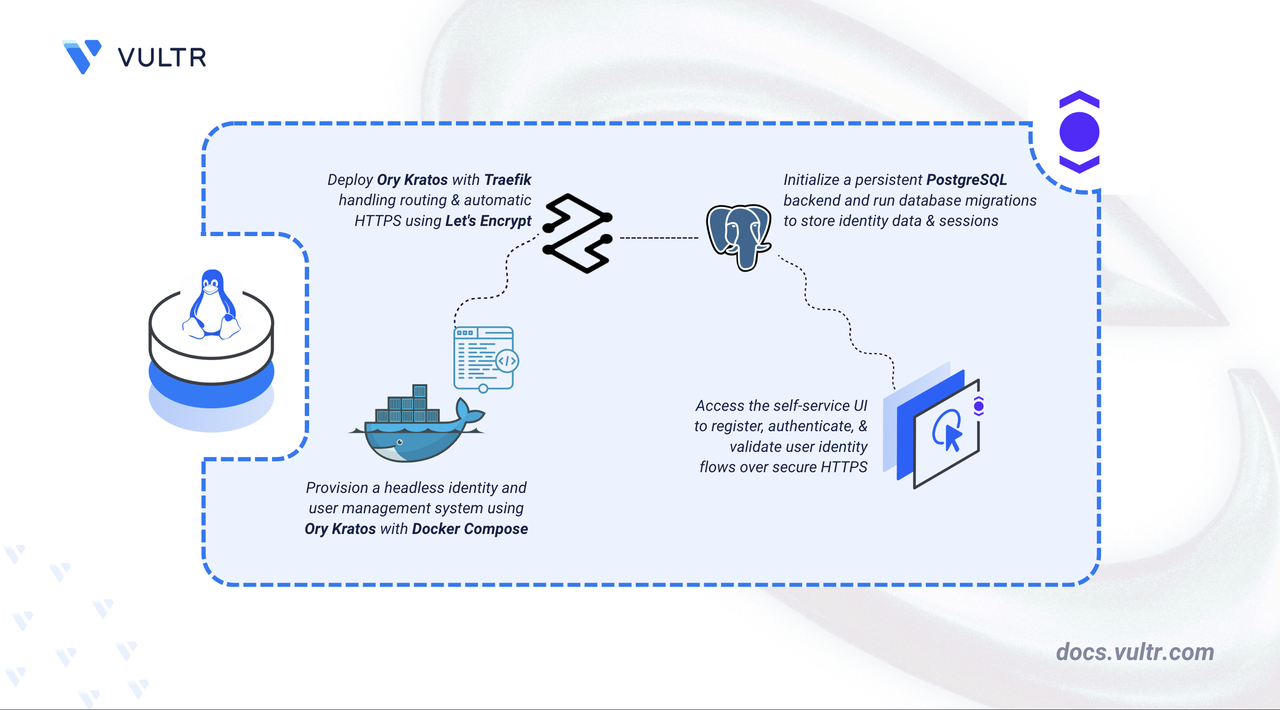
How to Deploy Ory Kratos – Open-Source Identity and User Management System header image

Ory Kratos is an open-source identity and user management system designed for cloud-native environments. It handles user registration, login, account recovery, email verification, and profile management through a headless Application Programming Interface (API)-first architecture. Unlike traditional identity platforms that bundle a built-in user interface, Kratos exposes RESTful APIs that you connect to your own frontend. This separation gives you full control over the user experience while Kratos manages the underlying identity logic and security.

This article explains how to deploy an Ory Kratos instance on a Linux server using Docker Compose, configure Traefik for automatic HTTPS with Let's Encrypt, and verify the deployment by registering and authenticating a test user.

Prerequisites

Before you begin, you need to:

Set Up the Directory Structure, Configuration, and Environment Variables

Ory Kratos requires a project directory containing configuration files for the identity schema and server settings. Environment variables store sensitive credentials separately from configuration files.

  1. Create the project directory with all required subdirectories.

    console
    $ mkdir -p ~/ory-kratos/{config,data/postgres}
    

    This command creates the following directory structure:

    • config/: Stores Kratos configuration files and identity schemas.
    • data/postgres/: Persists PostgreSQL database files across container restarts.
  2. Navigate to the project directory.

    console
    $ cd ~/ory-kratos
    
  3. Create the identity schema file. This JSON schema defines which fields are available on user accounts and how those fields map to authentication credentials.

    console
    $ nano config/identity.schema.json
    
  4. Add the following content.

    json
    {
      "$id": "https://schemas.ory.sh/presets/kratos/quickstart/email-password/identity.schema.json",
      "$schema": "http://json-schema.org/draft-07/schema#",
      "title": "Person",
      "type": "object",
      "properties": {
        "traits": {
          "type": "object",
          "properties": {
            "email": {
              "type": "string",
              "format": "email",
              "title": "Email",
              "ory.sh/kratos": {
                "credentials": {
                  "password": {
                    "identifier": true
                  }
                },
                "recovery": {
                  "via": "email"
                },
                "verification": {
                  "via": "email"
                }
              }
            },
            "name": {
              "type": "object",
              "properties": {
                "first": {
                  "title": "First Name",
                  "type": "string"
                },
                "last": {
                  "title": "Last Name",
                  "type": "string"
                }
              }
            }
          },
          "required": ["email"],
          "additionalProperties": false
        }
      }
    }
    

    Save and close the file.

    This schema defines an identity with an email address that serves as the login identifier, along with optional first and last name fields. The ory.sh/kratos annotations configure the email field for password-based authentication, account recovery, and email verification.

  5. Generate two random secrets for cookie and cipher encryption.

    console
    $ openssl rand -hex 16
    

    Run this command twice and copy both output strings. You use these values in the configuration file.

  6. Create the Kratos configuration file.

    console
    $ nano config/kratos.yml
    
  7. Add the following content. Replace kratos.example.com with your domain name, YOUR_GENERATED_SECRET and YOUR_GENERATED_CIPHER_SECRET with the random strings from the previous command, and update the SMTP section with your email provider's credentials.

    yaml
    version: v0.13.0
    
    serve:
      public:
        base_url: https://kratos.example.com/.ory/kratos/public/
        cors:
          enabled: true
          allowed_origins:
            - https://kratos.example.com
          allowed_methods:
            - POST
            - GET
            - PUT
            - PATCH
            - DELETE
          allowed_headers:
            - Authorization
            - Cookie
            - Content-Type
          exposed_headers:
            - Content-Type
            - Set-Cookie
          allow_credentials: true
      admin:
        base_url: http://127.0.0.1:4434/
        host: 127.0.0.1
    
    selfservice:
      default_browser_return_url: https://kratos.example.com/
      allowed_return_urls:
        - https://kratos.example.com
      methods:
        password:
          enabled: true
          config:
            min_password_length: 12
            haveibeenpwned_enabled: true
            identifier_similarity_check_enabled: true
      flows:
        error:
          ui_url: https://kratos.example.com/error
        settings:
          ui_url: https://kratos.example.com/settings
          privileged_session_max_age: 15m
        recovery:
          enabled: true
          ui_url: https://kratos.example.com/recovery
          use: code
        verification:
          enabled: true
          ui_url: https://kratos.example.com/verification
          use: code
          after:
            default_browser_return_url: https://kratos.example.com/
        logout:
          after:
            default_browser_return_url: https://kratos.example.com/login
        login:
          ui_url: https://kratos.example.com/login
          lifespan: 10m
        registration:
          lifespan: 10m
          ui_url: https://kratos.example.com/registration
          after:
            password:
              hooks:
                - hook: session
                - hook: show_verification_ui
    
    log:
      level: info
      format: text
      leak_sensitive_values: false
    
    secrets:
      cookie:
        - YOUR_GENERATED_SECRET
      cipher:
        - YOUR_GENERATED_CIPHER_SECRET
    
    ciphers:
      algorithm: xchacha20-poly1305
    
    hashers:
      algorithm: bcrypt
      bcrypt:
        cost: 8
    
    identity:
      default_schema_id: default
      schemas:
        - id: default
          url: file:///etc/config/kratos/identity.schema.json
    
    session:
      cookie:
        domain: kratos.example.com
        same_site: Lax
    
    courier:
      smtp:
        connection_uri: smtps://username:password@smtp.example.com:465/
        from_address: noreply@example.com
        from_name: Ory Kratos
    
    feature_flags:
      use_continue_with_transitions: true
    

    Save and close the file.

    The configuration file controls how Kratos operates. The serve.public section sets the public API base URL and Cross-Origin Resource Sharing (CORS) settings. The serve.admin section binds the admin API to the loopback address, restricting it from external access. The selfservice section enables password-based authentication with a minimum password length of 12 characters, breach database checking via HaveIBeenPwned, and automatic session creation after registration.

    Note
    The admin API base_url uses http://127.0.0.1:4434/ intentionally. The admin API provides unrestricted access to all identities and sessions, and should never be exposed through the public reverse proxy.
  8. Create the environment variables file.

    console
    $ nano .env
    
  9. Add the following content. Replace EXAMPLE_DB_PASSWORD with a strong, unique database password and admin@example.com with your email address for Let's Encrypt notifications.

    ini
    DOMAIN=kratos.example.com
    LETSENCRYPT_EMAIL=admin@example.com
    KRATOS_VERSION=v26.2.0
    POSTGRES_USER=kratos
    POSTGRES_PASSWORD=EXAMPLE_DB_PASSWORD
    POSTGRES_DB=kratosdb
    LOG_LEVEL=info
    

    Save and close the file.

Deploy with Docker Compose

Docker Compose orchestrates the Kratos server, PostgreSQL database, self-service UI, and Traefik reverse proxy as a single deployment. Traefik automatically provisions TLS certificates from Let's Encrypt.

  1. Create the Docker Compose file.

    console
    $ nano docker-compose.yml
    
  2. Add the following content. Replace kratos.example.com with your domain name, and replace yourCookieSecret1234 and yourCsrfSecret1234 with strong random values generated using openssl rand -hex 16.

    yaml
    services:
      traefik:
        image: traefik:v3.7.0
        container_name: traefik
        command:
          - "--providers.docker=true"
          - "--providers.docker.exposedbydefault=false"
          - "--entrypoints.web.address=:80"
          - "--entrypoints.websecure.address=:443"
          - "--entrypoints.web.http.redirections.entrypoint.to=websecure"
          - "--entrypoints.web.http.redirections.entrypoint.scheme=https"
          - "--certificatesresolvers.letsencrypt.acme.httpchallenge=true"
          - "--certificatesresolvers.letsencrypt.acme.httpchallenge.entrypoint=web"
          - "--certificatesresolvers.letsencrypt.acme.email=${LETSENCRYPT_EMAIL}"
          - "--certificatesresolvers.letsencrypt.acme.storage=/letsencrypt/acme.json"
        ports:
          - "80:80"
          - "443:443"
        volumes:
          - "/var/run/docker.sock:/var/run/docker.sock:ro"
          - "./letsencrypt:/letsencrypt"
        restart: unless-stopped
    
      postgres:
        image: postgres:16-alpine
        container_name: kratos-postgres
        environment:
          POSTGRES_USER: ${POSTGRES_USER}
          POSTGRES_PASSWORD: ${POSTGRES_PASSWORD}
          POSTGRES_DB: ${POSTGRES_DB}
        volumes:
          - ./data/postgres:/var/lib/postgresql/data
        healthcheck:
          test: ["CMD-SHELL", "pg_isready -U ${POSTGRES_USER}"]
          interval: 10s
          retries: 5
        restart: unless-stopped
    
      kratos-migrate:
        image: oryd/kratos:${KRATOS_VERSION}
        container_name: kratos-migrate
        environment:
          - DSN=postgres://${POSTGRES_USER}:${POSTGRES_PASSWORD}@postgres:5432/${POSTGRES_DB}?sslmode=disable
        command: migrate sql -e --yes
        depends_on:
          postgres:
            condition: service_healthy
        restart: on-failure
    
      kratos:
        image: oryd/kratos:${KRATOS_VERSION}
        container_name: kratos
        ports:
          - "127.0.0.1:4434:4434"
        environment:
          - DSN=postgres://${POSTGRES_USER}:${POSTGRES_PASSWORD}@postgres:5432/${POSTGRES_DB}?sslmode=disable
          - LOG_LEVEL=${LOG_LEVEL}
        command: serve -c /etc/config/kratos/kratos.yml --watch-courier
        volumes:
          - ./config:/etc/config/kratos
        depends_on:
          - kratos-migrate
        labels:
          - "traefik.enable=true"
          - "traefik.http.routers.kratos.rule=Host(`${DOMAIN}`) && PathPrefix(`/.ory/kratos/public`)"
          - "traefik.http.routers.kratos.entrypoints=websecure"
          - "traefik.http.routers.kratos.tls.certresolver=letsencrypt"
          - "traefik.http.services.kratos.loadbalancer.server.port=4433"
          - "traefik.http.middlewares.kratos-strip.stripprefix.prefixes=/.ory/kratos/public"
          - "traefik.http.routers.kratos.middlewares=kratos-strip"
        restart: unless-stopped
    
      kratos-selfservice-ui-node:
        image: oryd/kratos-selfservice-ui-node:${KRATOS_VERSION}
        container_name: kratos-ui
        environment:
          - KRATOS_PUBLIC_URL=http://kratos:4433/
          - KRATOS_BROWSER_URL=https://kratos.example.com/.ory/kratos/public/
          - COOKIE_SECRET=yourCookieSecret1234
          - CSRF_COOKIE_NAME=__HOST-csrf
          - CSRF_COOKIE_SECRET=yourCsrfSecret1234
          - PORT=4455
          - SECURITY_MODE=
        depends_on:
          - kratos
        labels:
          - "traefik.enable=true"
          - "traefik.http.routers.ui.rule=Host(`${DOMAIN}`)"
          - "traefik.http.routers.ui.entrypoints=websecure"
          - "traefik.http.routers.ui.tls.certresolver=letsencrypt"
          - "traefik.http.services.ui.loadbalancer.server.port=4455"
          - "traefik.http.routers.ui.priority=1"
        restart: unless-stopped
    

    Save and close the file.

    In the above manifest:

    • services: Launches five containers managed by Docker Compose:
      • traefik: Serves as the reverse proxy and TLS termination point with automatic Let's Encrypt certificate provisioning.
      • postgres: Stores Kratos identity data in a persistent PostgreSQL 16 database.
      • kratos-migrate: Runs database migrations on startup and exits after completion.
      • kratos: Runs the main Ory Kratos identity server.
      • kratos-selfservice-ui-node: Provides the browser-based UI for registration, login, and account management.
    • ports (kratos): Binds the admin API to 127.0.0.1:4434 for local access only, preventing external exposure.
    • labels (kratos): Routes requests matching /.ory/kratos/public/* to port 4433 via Traefik.
    • labels (kratos-selfservice-ui-node): Routes all other requests to port 4455. The priority=1 ensures this acts as the catch-all route.
    • depends_on: Ensures services start in the correct order with health checks.
    • volumes: Provides persistent storage for TLS certificates.
    • restart: unless-stopped: Enables automatic recovery after failures or server reboots.

    The PostgreSQL Data Source Name (DSN) uses sslmode=disable because the database connection travels over the internal Docker network. If you move PostgreSQL to a separate host, change sslmode=disable to sslmode=require.

  3. Build and start all services in detached mode.

    console
    $ docker compose up -d
    
  4. Verify all services are running.

    console
    $ docker compose ps -a
    

    The output displays four running containers and one completed migration container. All containers should show Up except kratos-migrate, which shows Exited (0) after completing database migrations.

  5. View the logs for the services.

    console
    $ docker compose logs
    

    For more information on managing Docker Compose stack, see the How To Use Docker Compose article.

Access and Configure Ory Kratos

Health check endpoints confirm the Kratos server is running correctly and Traefik routes requests properly.

  1. Test the Kratos admin API health endpoint from the server.

    console
    $ docker compose exec kratos wget -qO- http://127.0.0.1:4434/health/alive
    

    Output:

    {"status":"ok"}
  2. Test the public API through the Traefik HTTPS reverse proxy.

    console
    $ curl -s https://kratos.example.com/.ory/kratos/public/health/alive
    

    Output:

    {"status":"ok"}
  3. Verify that the self-service UI is accessible through HTTPS. Replace kratos.example.com with your domain.

    console
    $ curl -s -o /dev/null -w "%{http_code}" https://kratos.example.com/
    

    A 303 status code confirms the UI is accessible. The self-service UI redirects unauthenticated requests to /login. Open https://kratos.example.com in a web browser to access the UI.

    Ory Kratos self-service UI login page

Register and Authenticate a Test User

The Kratos API provides self-service flows for user registration and authentication. Testing these flows confirms the deployment handles the complete identity lifecycle correctly.

  1. Initiate a registration flow.

    console
    $ curl -s https://kratos.example.com/.ory/kratos/public/self-service/registration/api
    

    The response contains a JSON flow object with an id field. Locate and copy the id value.

  2. Submit the registration form using test user credentials.

    console
    $ curl -s -X POST \
        "https://kratos.example.com/.ory/kratos/public/self-service/registration?flow=FLOW_ID" \
        -H 'Content-Type: application/json' \
        -d '{
          "method": "password",
          "password": "YOUR-PASSWORD",
          "traits": {
            "email": "YOUR-EMAIL",
            "name": {
              "first": "FIRST-NAME",
              "last": "LAST-NAME"
            }
          }
        }'
    

    Replace:

    • FLOW_ID: The flow ID from the previous step's response.
    • YOUR-EMAIL: Your test email address.
    • YOUR-PASSWORD: A password that meets the minimum 12-character requirement.
    • FIRST-NAME and LAST-NAME: Your test user's first and last name.

    A successful registration returns a JSON response containing a session object with a session_token.

  3. Verify the user was created by querying the admin API.

    console
    $ docker compose exec kratos wget -qO- http://127.0.0.1:4434/admin/identities
    

    The response contains the registered identity with the email address and name provided during registration.

  4. Start a login flow.

    console
    $ curl -s https://kratos.example.com/.ory/kratos/public/self-service/login/api
    
  5. Locate and copy the flow id from the response. Submit the login credentials by replacing FLOW_ID with the login flow ID.

    console
    $ curl -s -X POST \
        "https://kratos.example.com/.ory/kratos/public/self-service/login?flow=FLOW_ID" \
        -H 'Content-Type: application/json' \
        -d '{
          "method": "password",
          "identifier": "YOUR-EMAIL",
          "password": "YOUR-PASSWORD"
        }'
    

    Replace YOUR-EMAIL and YOUR-PASSWORD with the credentials used during registration.

    A successful login returns a JSON response containing a session object with a session_token.

  6. Copy the session_token value from the response and verify the session. Replace SESSION_TOKEN with the token value.

    console
    $ curl -s https://kratos.example.com/.ory/kratos/public/sessions/whoami \
        -H "X-Session-Token: SESSION_TOKEN"
    

    The response contains the authenticated user's identity details, confirming the session is valid.

Conclusion

You have deployed Ory Kratos on a Linux server using Docker Compose with PostgreSQL for persistent storage, Traefik for automatic HTTPS, and the official self-service UI for user-facing flows. The configuration enforces production security settings including password policies, CORS rules, and secure session handling. For advanced configuration, social login providers, and API integration, refer to the official Ory Kratos documentation.

Comments