How to Deploy PocketBase – Open-Source Go Backend Platform
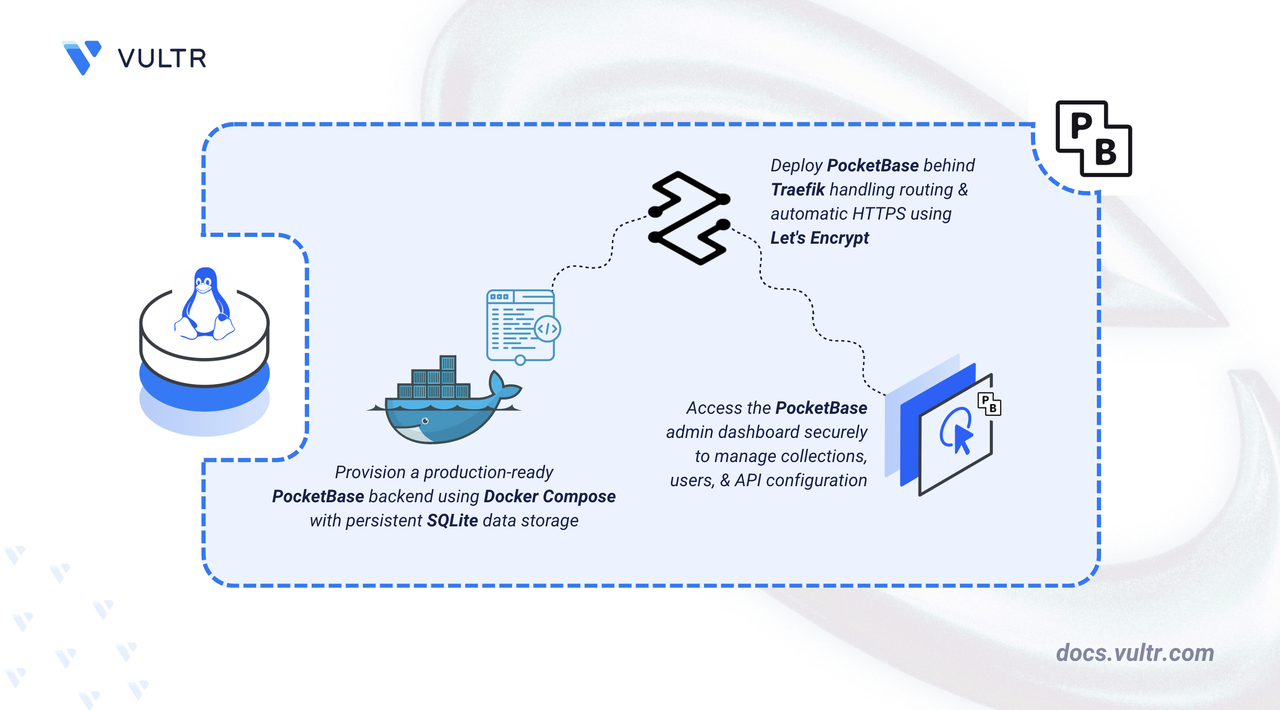
PocketBase is an open-source backend solution built with Go that bundles a real-time SQLite database, authentication system, file uploads, and administrative dashboard into a single binary. The embedded SQLite engine eliminates external database dependencies, while the built-in REST API and live subscriptions enable rapid development of web and mobile applications.
This article walks through deploying PocketBase on a Linux server with Docker Compose. The setup includes Traefik for automated TLS certificates, pre-configured admin credentials via environment variables, and a practical demonstration of collection creation and API interaction.
Prerequisites
Before you begin, you need to:
- Have access to a Linux-based server (with at least 2 CPU cores and 4 GB of RAM) as a non-root user with sudo privileges.
- Install Docker and Docker Compose.
- Create a DNS A record pointing to your server's IP address (for example,
pocketbase.example.com).
Set Up the Directory Structure, Configuration, and Environment Variables
PocketBase persists all data, including the SQLite database, uploaded files, and logs, in a dedicated data directory. Environment variables define the domain configuration, TLS settings, and initial administrator credentials.
Create the project folder and data directory.
CONSOLEpb_data: Stores the SQLite database, uploaded files, and application logs.
Switch to the project folder.
CONSOLECreate an environment file to store configuration values.
CONSOLEAdd the following environment variables:
INIReplace:
pocketbase.example.comwith your registered domain.admin@example.comwith your email address for certificate notifications and admin login.SecurePassword123with a strong password. Keep the quotes if using special characters.
Save and close the file.
Deploy with Docker Compose
The deployment stack consists of Traefik for reverse proxy and certificate management, plus the PocketBase container with pre-configured superuser credentials. This configuration uses the community-maintained PocketBase Docker image. On first startup, PocketBase automatically creates the admin account using the provided environment variables.
Create the Docker Compose file.
CONSOLEAdd the following manifest:
YAMLSave and close the file.
In the above manifest:
- services: Orchestrates two containers through Docker Compose:
- traefik: Operates as the reverse proxy, handling TLS termination and routing.
- pocketbase: Runs the backend application with SQLite storage.
- image: Specifies the container image for each service.
- container_name: Assigns fixed names to containers for easier identification in logs and management operations.
- command (Traefik): Configures Docker provider discovery, dual entry points for HTTP/HTTPS, automatic HTTP-to-HTTPS redirection, and Let's Encrypt certificate provisioning via HTTP challenge.
- ports (Traefik): Publishes ports
80and443on the host for external traffic handling. - environment (PocketBase): Injects superuser credentials from the
.envfile to auto-create the admin account on first startup. - expose (PocketBase): Makes port
8090accessible to other containers (Traefik) without binding it to the host. - volumes:
- The
letsencryptnamed volume stores TLS certificates persistently across container rebuilds. - The Docker socket (
/var/run/docker.sock) grants Traefik the ability to discover services and update routes dynamically. - The
pb_databind mount preserves the SQLite database, uploaded files, and application logs.
- The
- labels (PocketBase): Registers the container with Traefik and defines routing rules for HTTPS traffic based on the domain name.
- restart: unless-stopped: Ensures containers recover automatically after failures or system restarts unless manually stopped.
Warning
The admin account is created only during the first startup when the
pb_datadirectory is empty. If you already have an existing database and want to reinitialize the admin account, remove the data directory before starting the container:CONSOLEThis command permanently deletes all stored data in the
pb_datadirectory.- services: Orchestrates two containers through Docker Compose:
Launch the containers.
CONSOLEVerify both services are operational.
CONSOLEOutput:
Check the service logs for any errors.
CONSOLEFor more information on managing a Docker Compose stack, see the How To Use Docker Compose article.
Access and Configure PocketBase
The administrative dashboard is accessible at the /_/ path. With superuser credentials configured via environment variables, the initial setup wizard is bypassed and you can log in directly.
Open your web browser and navigate to the PocketBase admin panel at
https://pocketbase.example.com/_/, replacingpocketbase.example.comwith your domain.Sign in using the
PB_ADMIN_EMAILandPB_ADMIN_PASSWORDcredentials from your.envfile.The dashboard provides access to:
- Collections: Define data schemas with custom fields, validation constraints, and API permission rules.
- Users: Administer registered accounts, verify emails, and manage access controls.
- Logs: Review incoming requests, track errors, and monitor system activity.
- Settings: Configure email delivery, external storage providers, OAuth integrations, and scheduled backups.
Create a Collection and Test the API
Collections represent database tables with auto-generated REST endpoints. PocketBase provides built-in support for CRUD operations, query filters, and result pagination without additional configuration.
From the dashboard sidebar, click + New collection.
Enter
tasksas the collection name. Under Fields, click + New field and add:- Field name:
title, Type: Plain text - Field name:
completed, Type: Bool
- Field name:
Switch to the API Rules tab and configure public read access:
- List/Search rule: Leave empty (grants public access).
- View rule: Leave empty.
- Create rule: Set to
@request.auth.id != ""(requires authentication). - Update rule: Set to
@request.auth.id != "". - Delete rule: Set to
@request.auth.id != "".
Click Save changes to save the collection.
Add a sample record. Click the
taskscollection, then click + New record. Fill in:title:Learn PocketBase APIcompleted: Unchecked
Click Create to save the record.
Query the collection through the REST API. Replace
pocketbase.example.comwith your domain:CONSOLEOutput:
The response contains the task record within the
itemsarray.Test filtering records by adding query parameters:
CONSOLEOutput:
PocketBase supports filtering, sorting, and pagination through query parameters, enabling flexible data retrieval for frontend applications.
Conclusion
You have successfully deployed PocketBase with HTTPS access through Traefik using Docker Compose. The configuration provides a complete backend platform with user authentication, real-time database capabilities, and file storage. PocketBase's admin interface simplifies collection management and user administration, while its REST API enables rapid application development. The SQLite-based architecture simplifies backups by allowing you to copy the pb_data directory. The single-binary design minimizes resource usage for small to medium-scale applications. For more information, refer to the official PocketBase documentation.


0 Comments
Be the first to comment and share your perspective with the community.