How to Install Cohere Toolkit on Ubuntu 24.04
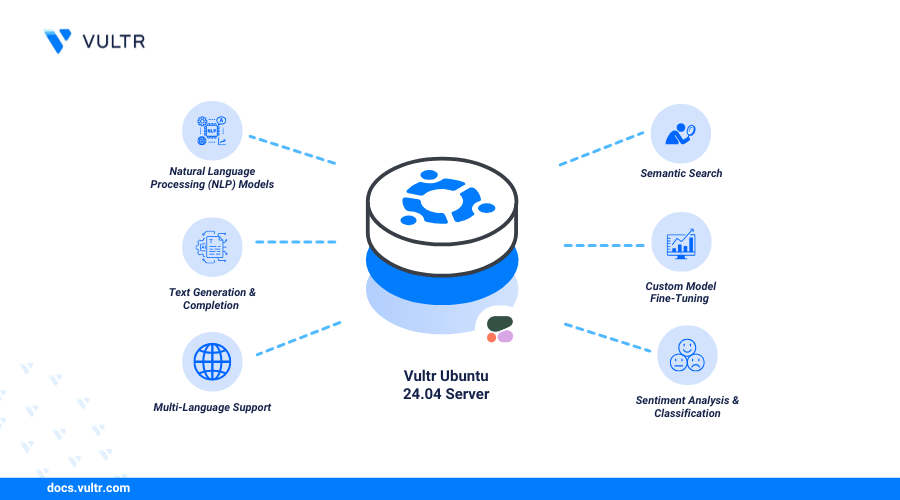
Cohere Toolkit is an open-source, production-ready repository for developing generative AI applications. It provides UI components for knowledge assistants, supports models from Cohere Platform, Bedrock, and SageMaker, and connects to enterprise data sources. Install Cohere Toolkit to build and deploy Retrieval Augmented Generation (RAG) applications that are conversational, customizable, and grounded in domain-specific knowledge sources.
This article explains how to install Cohere Toolkit on Ubuntu 24.04.
Prerequisites
Before you begin, you need to:
- Have access to an Ubuntu 24.04 instance as a non-root sudo user.
- Install Docker and Docker Compose used internally by the Cohere toolkit.
Get a Cohere Toolkit API Key
- Create a Cohere account.
- Login to your Cohere account.
- Select API Keys in the navigation margin.
- Copy the default trial key from the Trial keys table and save it for later use.
Install Poetry
Poetry is a dependency management tool for Python you can use to create a dedicated environment for the Cohere Toolkit. Follow the steps to install Poetry and Python3.11 to use with the Cohere Toolkit on Ubuntu 24.04.
Add the
deadsnakesPPA to your APT repository sources.CONSOLEThe
deadsnakesPPA provides access to multiple Python versions that may not be available in the default APT repository sources.Update the APT package index to apply the repository changes.
CONSOLEInstall Python 3.11.
CONSOLECohere Toolkit requires Python 3.11 to run. If the build process displays warnings about an unsupported Python version, it automatically detects and uses Python 3.11 if it's available.
Install Poetry.
CONSOLEVerify the installed Poetry version.
CONSOLEYour output should be similar to the one below.
Initialize a project and create a new
pyproject.tomlconfiguration.CONSOLE- Enter project details when prompted. Enter the compatible Python version as
^3.11when prompted and press Enter after each option to save the project configuration.
Your project configuration should be similar to the one below when successful.
- Enter project details when prompted. Enter the compatible Python version as
Activate a new virtual environment using Python 3.11.
CONSOLEYour output should be similar to the one below:
Install Cohere Toolkit
Cohere Toolkit includes two configuration templates, configuration.template.yaml and secrets.template.yaml you can use to create new configurations. Follow the steps below to clone the Cohere Toolkit GitHub repository and create a new configuration using a template.
Switch to your user's home directory.
CONSOLEClone the Cohere Toolkit repository using Git.
CONSOLESwitch to the
cohere-toolkitdirectory.CONSOLECopy the
secrets.template.yamlfile and save it assecrets.yaml.CONSOLEOpen the
secrets.yamlfile using a text editor such asnano.CONSOLEAdd your Cohere API key to the
api_keyfield. Ensure there is a single space after:before the key. ReplacehMtMgJGNbtymq-examplewith your actual key.INISave and close the file.
Copy the
configuration.template.yamlfile and save it asconfiguration.yaml.CONSOLE
Configure Cohere Toolkit
Cohere Toolkit includes a Makefile to automate the compilation, setup, testing, and environment configurations. Follow the steps below to configure the Cohere Toolkit, including the backend and frontend.
Navigate to the
cohere-toolkitdirectory.CONSOLERun the
first-runtarget using make.CONSOLEThe above command may terminate with an error due to
psycopg2 (2.9.10)not supporting PEP 517 builds. The issue originates from the build backend and is not related to Poetry. Refer to common issue # 3 for more information.Your error should be similar to the one below.
Open the
pyproject.tomlfile.CONSOLEFind the
psycopg2 = "^2.9.9"field within the[tool.poetry.dependencies]section and comment it using the#symbol.The updated section should look like the one below.
Comment the following
psycopg2 = "^2.9.9"within the[tool.poetry.group.setup.dependencies]section, and addpsycopg2-binary = "^2.9.9"on a new line.The updated
[tool.poetry.group.setup.dependencies]section should look like the one below.
Save and close the file.
Lock the new project dependencies.
CONSOLERun the
first-runtarget again.CONSOLEPress Enter when prompted to accept the default public backend API hostname.
Press Enter to select the default
devbuild target.Press Enter to disable the Python Interpreter. Enabling it requires additional secrets.
Press Enter to disable Tavily Internet Search. Enabling it requires a
TAVILY_API_KEY.Select
Cohere Platformas the deployment platform and press Enter to apply the changes.Press Enter to review the configuration variables and accept the project settings.
The Cohere Toolkit also integrates with PostgreSQL and Redis databases. Your output should be similar to the one below when successful.
Cohere Toolkit setup completes with the following application endpoints.
- Cohere Toolkit frontend:
http://localhost:4000 - Cohere Toolkit backend:
http://localhost:8000 - Cohere Platform model
- Cohere Toolkit frontend:
Allow network connections ot the Cohere Toolkit backend port
8000if you need to remotely access the application.CONSOLERun the following command to install UFW if it's unavailable and allow SSH connections.
CONSOLE
Reload UFW to apply the firewall configuration changes.
CONSOLE
Make Cohere API Calls
The Cohere Platform model uses two endpoints for API calls.
- Non-streaming:
http://localhost:8000/v1/chat - Streaming:
http://localhost:8000/v1/chat-stream
Follow the steps below to make an API call to the Cohere backend.
Send a request to the non-streaming endpoint using a prompt, instruction, or question. For example, run the following command to send a
What is Vultr?prompt.CONSOLEYour output should be similar to the one below:
Conclusion
You have installed Cohere Toolkit on Ubuntu 24.04 and made an API call to the Cohere backend. You can use the toolkit to access Cohere's Command, Embed, and Rerank models and integrate them with third-party frameworks such as LangChain and LlamaIndex to develop applications using Large Language Models (LLMs). For more information and configuration options, visit the Cohere Toolkit documentation.


0 Comments
Be the first to comment and share your perspective with the community.