How to Install Memcached on Ubuntu 20.04
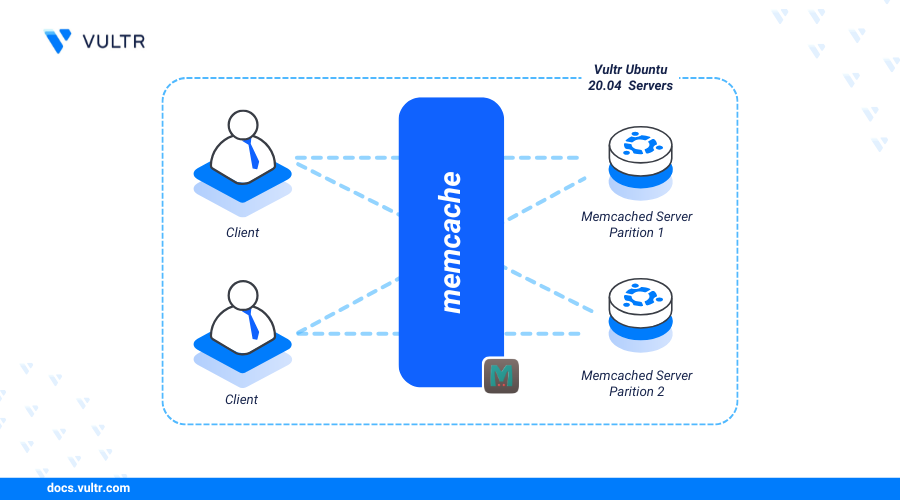
Memcached is a free, distributed memory caching solution that temporarily stores data and objects—like frequent database queries, API responses, session data, or computations—in RAM. It integrates with modern applications to reduce repeated operations such as database access, helping boost response times and reduce server load.
This article walks you through installing Memcached on Ubuntu 20.04 and configuring it to use SASL (Simple Authentication and Security Layer) for secure client connections.
Prerequisites
Before you begin:
Have an Ubuntu 20.04 server.
Access the server using SSH as a non-root user with sudo privileges.
Install Memcached
Memcached is included in Ubuntu 20.04's default package repositories and can be installed using the APT package manager. Alternatively, you can compile a specific version from source if needed. The following instructions cover installing Memcached and enabling it to run on your server.
Update the server package index.
CONSOLEInstall Memcached and required add-on tools.
CONSOLEView the installed Memcached version on your server.
CONSOLEOutput:
Enable the Memcached service to automatically start at boot time.
CONSOLEStart the Memcached service.
CONSOLE
Configure Memcached
Memcached uses the /etc/memcached.conf file for its configuration settings. Within this file, you can define options such as the port number, memory allocation, connection limits, and the IP address the service listens on. The following steps guide you through configuring these settings and confirming that Memcached is running correctly on your server.
Open the Memcached configuration file
/etc/memcached.confusing a text editor such as Nano.CONSOLEAdd
-Sat the end of the file after-P /var/run/memcached/memcached.pidto enable SASL authentication on your server.INIFind and uncomment the
-vdirective to enable verbose logging to the/var/log/memcachefile.INIUncomment the
-c 1024directive to limit the number of simultaneous Memcached connections. Replace1024with your desired number of connections.INIFind the following Memcached port directive to verify the application connection port on your server.
INILocate the
-ldirective and ensure it is set to127.0.0.1to restrict Memcached access to local connections only. If you intend to allow remote access, such as from a standalone Memcached server, update this value to your server’s public IP or Vultr VPC address.INISave and close the file.
Restart Memcached to apply the configuration changes.
CONSOLE
Secure Memcached
By default, Memcached does not use any authentication, which leaves it vulnerable to unauthorized access. To secure it, you can enable the SASL protocol, which enforces user authentication before allowing access. The steps below guide you through installing the SASL package to add this layer of security to your Memcached server.
Install the SASL package on your server.
CONSOLECreate a new directory to store your SASL authentication credentials.
CONSOLECreate a new SASL configuration file to use with Memcached. For example,
memcached.conf.CONSOLEAdd the following contents to the file.
INISave and close the file
The SASL configuration above sets up authentication for Memcached. Here's what each directive does:
log_level: Activates logging, with the value5enabling detailed logs.mech_list: Defines the authentication method, whereplainallows plain username and password authentication.sasldb_path: Specifies the location of the Memcached SASL database used for authentication.
Create a user using the
saslpasswdutility. Replaceexample-userwith your actual username to enable it in your Memcached database.CONSOLEEnter a strong password for the new user when prompted.
Grant the Memcached user
memcachefull privileges to the/etc/sasl2/memcached-sasldb2database file.CONSOLERestart Memcached to apply the configuration changes.
CONSOLECheck the status of Memcached server.
CONSOLEList all the created user in SASL authentication database.
CONSOLEOutput:
Connect to Memcached to test your new user credentials. Replace
example-user@ubuntu20andstrong-passwordwith your actual user details.CONSOLEYour output should look like the one below when successful:
Connect to Memcached
Memcached can be used with various application frameworks like PHP, Perl, Python, Ruby, and Java. To connect and test Memcached with PHP, follow these steps.
Install PHP and the Memcached module.
CONSOLECreate a new sample PHP script to connect to Memcached.
CONSOLEAdd the following contents to the file. Replace
example-user@ubuntu20andstrong-passwordwith your actual user credentials.PHPSave and close the file.
The PHP script above connects to Memcached using the provided example user details and the binary protocol. It creates a new key,
example, with the valueGreetings from Vultr!, which is then stored in the Memcached memory and retrieved through the$memcachedvariable in the application.Run the script using PHP to test the connection to Memcached.
CONSOLEOutput:
Based on the above output, the PHP script successfully connects to Memcached, creates the
examplekey and writes a new valueGreetings from Vultrto retrieve from memory.
Conclusion
You have successfully installed Memcached on an Ubuntu 20.04 server and configured it for secure integration with application frameworks like PHP. Memcached enhances server performance by storing frequently accessed data, such as database queries, in memory.


0 Comments
Be the first to comment and share your perspective with the community.