How To Run a Container in Docker
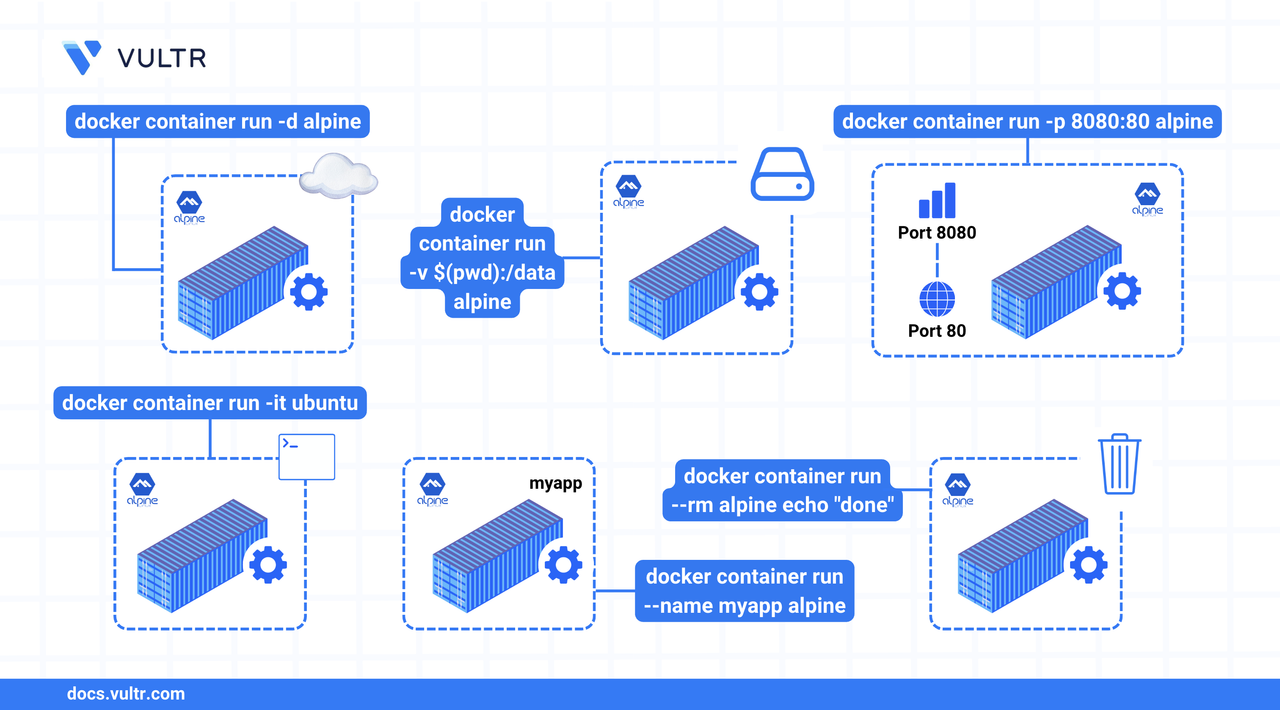
Docker runs applications inside containers, which are lightweight, isolated environments that bundle software with its dependencies and configuration. Unlike virtual machines, containers do not require a full guest operating system and instead share the host's kernel. This makes containers faster to start and more resource-efficient. The docker container run command is the primary method for starting containers from images, applying runtime options, and creating isolated processes.
This article explains how to use docker container run to launch containers with custom settings, such as naming containers, running them in detached mode, publishing ports, mounting volumes, and enabling automatic cleanup with --rm. It also includes reference tables that describe important Docker run flags for managing resources, networks, storage, and container health.
The Short Answer Version
Each command demonstrates a core usage of docker container run, including naming, networking, volumes, interactive mode, and cleanup.
General Options for docker container run
Networking Options for docker container run
Storage Options for docker container run
Resource Management Options for docker container run
Security Options for docker container run
Container Health Options for docker container run
Additional Options for docker container run
Run Container Under Specific Name
Use the --name flag with docker container run to assign a custom name to your container. This helps with logging, management, and automation. Without this flag, Docker generates a random name like frosty_morse.
Container names must begin with an alphanumeric character and may only contain letters, numbers, underscores (_), periods (.), and hyphens (-).
Command Syntax
--name <container-name>: Assigns a specific name to the container.[IMAGE]: The Docker image to use (e.g.,nginx,ubuntu,busybox).
Command Demonstration
Create a BusyBox container named
busybox_test.CONSOLECreate an Nginx container named
web-server.CONSOLECreate an Ubuntu container named
linux.CONSOLECreate a named container
my-nginxand run it in the background.CONSOLEVerify that the container is running.
CONSOLEDisplay logs for the
my-nginxcontainer.CONSOLERename
my-nginxtomy-nginx-2.CONSOLEList containers to confirm the name change.
CONSOLEOutput:
Run Container in Background (Detached Mode)
By default, Docker runs containers in the foreground and displays their output in your terminal. To run containers in the background, use the -d (detached) flag. This is especially useful for services that need to run continuously, such as web servers and background workers.
Command Syntax
-d: Runs the container in detached mode.[IMAGE]: The image to use for the container (e.g.,nginx,busybox).
Command Demonstration
Run an Nginx container in background mode.
CONSOLEView logs in real-time.
CONSOLEOpen a shell session inside the container.
CONSOLERun a command inside the container.
CONSOLEOutput:
Exit the shell.
CONSOLE
Run Container and Publish Container Ports
Use the -p or --publish flag with docker container run to make a container’s internal ports accessible from the host. Port publishing enables external clients to reach containerized applications like web servers or APIs.
Publishing ports are required only for incoming connections. Containers can initiate outgoing connections without published ports.
Command Syntax
-p: Publishes a container port to the host system.[IP:]: (Optional) Bind the port to a specific interface like127.0.0.1.<host_port>: The port exposed on the host machine.<container_port>: The internal port in the container.[IMAGE]: The Docker image to run.
Command Demonstration
Map container port
80to host port8080.CONSOLEMap host port
8080to container port1234for UDP traffic.CONSOLELimit access to localhost only.
CONSOLEMap container port
80to the same host port.CONSOLEExpose multiple ports (HTTP and HTTPS).
CONSOLE
Command Application
The following examples demonstrate how port publishing behaves in practice, including local and remote accessibility.
Run an Nginx container and expose port 8080 to the public.
CONSOLEAccess the container from an external system (replace with your instance IP).
CONSOLERun a container restricted to localhost access only.
CONSOLEVerify localhost access works.
CONSOLEVerify remote access is blocked (expect timeout or error).
CONSOLE
Run Container With Mounted Host Volume
By default, Docker containers are isolated from the host filesystem. To share files between the host and the container, such as application configs, website content, or database data, use the -v flag to mount a host directory into the container.
Command Syntax
-v: Mounts a directory from the host system.<host_path>: Absolute path to a directory on the host.<container_path>: Target directory inside the container.[:options]: Optional settings such asro(read-only).[IMAGE]: Docker image to run, such asnginxorbusybox.
Command Demonstration
Mount a host directory into a BusyBox container with read-write access.
CONSOLEMount the same directory as read-only.
CONSOLE
Command Application
Use this example to build a real-world containerized web server by serving static files from the host system using Nginx. This demonstrates how volume mounting enables persistent content sharing between host and container.
Create a directory on the host for your static website.
CONSOLENavigate into the directory.
CONSOLECreate an HTML page.
CONSOLERun an Nginx container that mounts the website directory and serves it.
CONSOLE-d: Detached mode.-p 8082:80: Maps host port 8082 to container port 80.-v ...:ro: Mounts the host directory as read-only inside the container.
Confirm the container is serving the HTML page.
CONSOLEOutput:
Mounted directories persist even after the container is removed. Changes made to files in /usr/share/nginx/html are reflected in /home/linuxuser/webdata on the host.
Run Docker Container and Automatically Remove It After Exit
By default, stopped containers remain on the system in an exited state. Use the --rm flag with docker container run to automatically remove the container after it finishes. This is ideal for short-lived containers like scripts, tests, or one-time tasks.
Command Syntax
--rm: Removes the container immediately after it exits.[IMAGE]: The Docker image to run.[COMMAND]: The command to execute inside the container.
Command Demonstration
Run a container that prints
Hello, worldand self-deletes.CONSOLERun a container that sleeps for 5 seconds, then exits and removes itself.
CONSOLERun an Ubuntu container that prints the current date and removes itself.
CONSOLE
Command Application
This demonstration shows how the --rm flag prevents accumulation of exited containers.
Run a temporary BusyBox container with
--rm.CONSOLEConfirm it no longer exists.
CONSOLEThe container does not appear in the list. Docker deleted it after execution.
Run the same container without
--rm:CONSOLEList all containers again.
CONSOLEOutput:
This container remains on the system in
Exitedstate and must be manually removed usingdocker container rm.
Conclusion
In this article, you learned how to run containers using the docker container run command. You named containers, launched them in detached mode, mapped ports, mounted host directories, and configured automatic cleanup with --rm. You also explored key flags for managing container networking, resource limits, security options, and health checks.
These capabilities form the foundation for building portable and reproducible container workflows. For more options and advanced configurations, refer to the official Docker documentation.
Tags:Docker


0 Comments
Be the first to comment and share your perspective with the community.