How to Install PHP 8 on Ubuntu 24.04
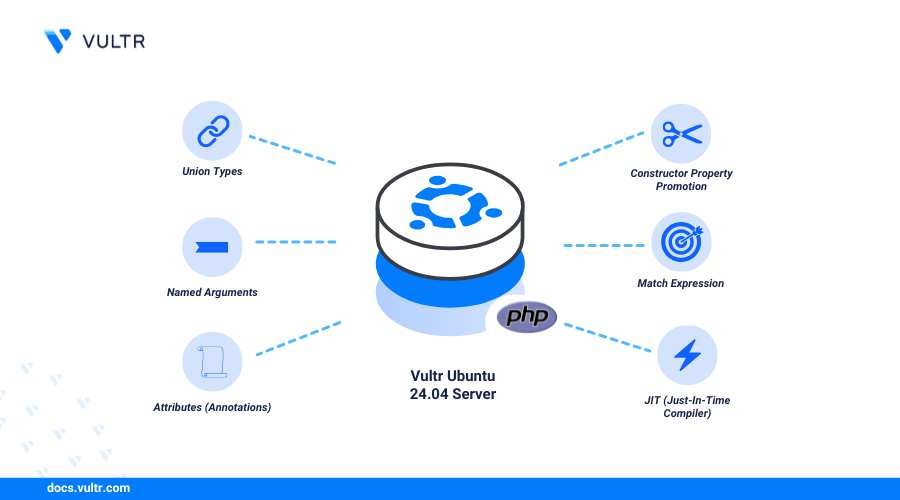
PHP (Hypertext Preprocessor) is a widely used, open-source scripting language for building dynamic and interactive web applications. To take advantage of its latest capabilities, install PHP 8 on Ubuntu 24.04, which includes PHP 8.4’s performance enhancements such as JIT compilation, improved type safety, and expanded syntax features.
This article shows you how to install PHP 8.4 on Ubuntu 24.04 using the ppa:ondrej/php repository. You'll configure PHP-FPM, verify the installation using two test methods (Apache and PHP's built-in server), and ensure common extensions are working properly.
Prerequisites
Before you begin:
- Have an Ubuntu 24.04 server.
- Access the server via SSH as a non-root user with
sudoprivileges. - Update the server.
Add the PHP PPA Repository
Ubuntu’s default package sources may not include older PHP 8.x versions. To install PHP 8.4, you’ll use the widely trusted ppa:ondrej/php Personal Package Archive (PPA), which offers maintained versions and related extensions.
Update the APT package index.
CONSOLEAdd the
ppa:ondrej/phprepository to your APT sources.CONSOLEPress Enter when prompted to add the PPA to your APT sources.
Update the APT package index to apply the PPA repository information.
CONSOLEPHP 8.4 is currently available through the
ppa:ondrej/phprepository. You can verify the available version in your APT sources by running:CONSOLEOutput.
This confirms that PHP 8.4 is available from the
ppa:ondrej/phprepository.For the latest official release details, refer to the PHP Releases page.
Install PHP 8 on Ubuntu 24.04
Now that you've added the PPA, install PHP 8.4 and the essential extensions required by most modern web applications.
Install PHP 8.4.
CONSOLEInstall commonly used PHP extensions.
CONSOLEThese extensions are frequently used in content management systems, frameworks, and APIs:
php8.4-common: Core PHP filesphp8.4-cli: Command-line interfacephp8.4-opcache: Bytecode caching for performancephp8.4-mysql: MySQL/MariaDB database supportphp8.4-xml: XML parsingphp8.4-curl: cURL library supportphp8.4-zip: ZIP archive handlingphp8.4-mbstring: Multibyte string encoding (UTF-8, etc.)php8.4-gd: Image manipulationphp8.4-intl: Internationalization supportphp8.4-bcmath: Arbitrary precision math
Verify the PHP installation.
CONSOLEOutput.
List installed PHP versions and optionally make PHP 8.4 the default.
CONSOLEIf only PHP 8.4 is installed, set it as the default system version:
CONSOLEThen confirm:
CONSOLEVerify active modules to ensure extensions are loaded:
CONSOLEThis lists all active PHP modules.
Install PHP 8 FPM
PHP-FPM (FastCGI Process Manager) runs PHP as a separate background service and handles dynamic requests more efficiently than traditional CGI. It improves performance, resource control, and is ideal for high-traffic applications. Follow the steps below to set up PHP-FPM for optimal performance and efficiency.
Install PHP 8.4 FPM.
CONSOLEStart the PHP-FPM service.
CONSOLEEnable PHP-FPM to start automatically on boot.
CONSOLECheck the status of PHP-FPM service.
CONSOLEOutput.
Press Q to exit the status output.
Configure PHP-FPM Socket (For Apache Integration)
When using PHP-FPM with Apache, it's recommended to connect via a secure Unix socket instead of TCP for better performance and security. This section shows how to configure PHP-FPM to use a socket that Apache can access.
Open the PHP-FPM pool configuration file.
CONSOLEUpdate the following lines (if not already present).
INIThese settings allow Apache (running as
www-data) to send PHP requests through the socket used by PHP-FPM.
PHP-FPM allows Apache to delegate PHP processing to a separate process manager, improving performance and resource handling under heavy traffic. The integration is seamless with modules like proxy_fcgi and configuration snippets enabled through a2enconf.
For advanced tuning options (e.g., process limits, slow logs), see the official PHP-FPM documentation.
Test and Use PHP 8
This section guides you through integrating Apache with PHP-FPM and verifying the setup with a sample PHP script. Using proxy_fcgi, Apache delegates PHP processing to PHP-FPM, improving performance and scalability.
If Apache is not already installed, install it:
CONSOLE
Verify the Apache service is running.
CONSOLEOutput.
Press Q to exit the status output.
Enable required Apache modules for PHP-FPM:
CONSOLEEnable the PHP-FPM configuration for Apache:
CONSOLERestart Apache to apply changes:
CONSOLEAllow HTTP traffic through the firewall.
CONSOLEReload the firewall configuration.
CONSOLECreate a test
info.phpfile in the Apache web root directory.CONSOLEAdd the following code to the file.
PHPSave and exit the editor.
Access your server's IP address in a web browser and load the
/info.phpURL path to view the PHP information page. ReplaceSERVER-IPwith your server's actual IP address.Warning
After verifying PHP info, delete info.php to avoid exposing server configuration.
CONSOLE
Conclusion
In this article, you installed PHP 8.4 on Ubuntu 24.04, added the required PPA repository, installed core PHP extensions, and configured PHP-FPM. You also verified the installation by creating a test script served through Apache. With PHP 8.4 now running on your system, you’re ready to start building and deploying modern web applications using the latest features and improvements. For more information, visit the official PHP documentation.



0 Comments
Be the first to comment and share your perspective with the community.