How to Migrate AWS ECS Services to Vultr Kubernetes Engine
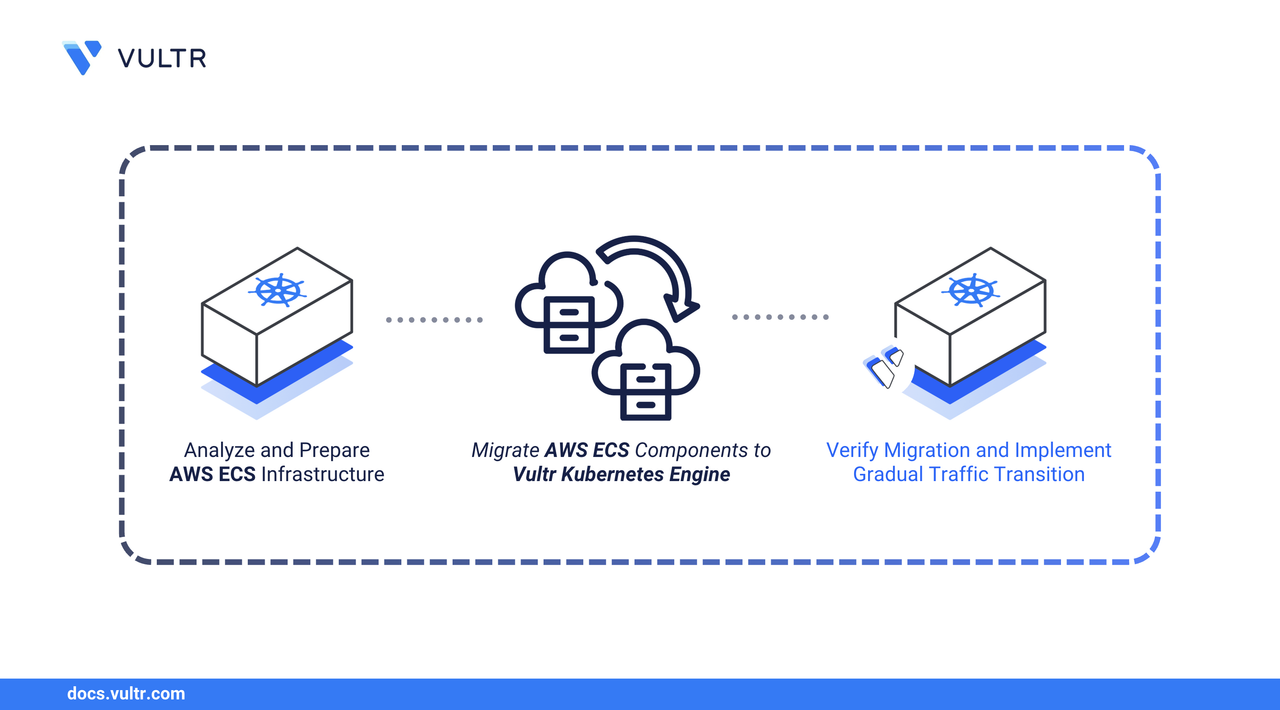
Amazon Elastic Container Service (ECS) is a proprietary container orchestration platform that manages Docker containers using AWS-specific task definitions, services, and integrations. While ECS provides deep integration with AWS services, it creates vendor lock-in and limits portability. Kubernetes offers a standardized, cloud-agnostic approach to container orchestration with broader ecosystem support and platform independence.
This guide outlines the migration of containerized applications from AWS ECS to Vultr Kubernetes Engine (VKE). It covers the analysis of existing ECS task definitions and services, conversion to Kubernetes manifests, replication of networking and service discovery patterns, migration of secrets and configuration, and deployment strategies that minimize downtime.
Prerequisites
Before you begin, you need to:
- Have a running AWS ECS cluster with services to migrate.
- Have access to your ECS task definitions, service configurations, and environment variables.
- Deploy a Vultr Kubernetes Engine cluster with sufficient capacity for your workloads.
- Install and configure kubectl on your workstation to manage your VKE cluster.
- Install Helm for deploying Kubernetes applications.
- Have access to the AWS CLI configured with appropriate credentials.
Analyze Your ECS Infrastructure
Before migrating, document your existing ECS configuration to understand the components that require conversion. This analysis identifies task definitions, services, load balancers, service discovery configurations, and dependencies.
List all ECS clusters in your AWS account.
CONSOLEThe output displays cluster ARNs for all ECS clusters in your account.
List services running in your target cluster. Replace
CLUSTER-NAMEwith your actual cluster name.CONSOLEDescribe each service to understand its configuration. Replace
SERVICE-NAMEandCLUSTER-NAMEwith your actual values.CONSOLEThis command exports the service configuration to a JSON file for reference during migration.
Extract the task definition name from the service configuration.
CONSOLEThe output displays the task definition ARN. Note the task definition family name and revision number for the next step.
Retrieve the task definition details. Replace
TASK-DEFINITION-ARNwith the ARN from the previous step.CONSOLEExtract key configuration details from the task definition.
CONSOLEThe output displays container images, resource allocations, port mappings, environment variables, secrets, and volume mounts. Save this information for converting to Kubernetes manifests.
Document the service dependencies by examining the service configuration file.
CONSOLEThe output shows load balancer attachments, service discovery registrations, and networking settings. Note these configurations for replication in Kubernetes.
Note
ECS
awsvpcmode maps each task to an ENI. Kubernetes uses a flat pod network model. If your ECS services relied on Security Groups for east-west isolation, replicate this behavior using Kubernetes NetworkPolicies.
Create a Kubernetes Namespace
Create a dedicated namespace for your application to isolate resources and simplify management. This provides logical separation from other applications and enables namespace-level resource quotas and access controls.
Create a namespace for your application.
CONSOLEReplace
my-appwith a descriptive name for your application environment.Verify that the namespace is created.
CONSOLESet the namespace as the default context to avoid specifying
-n my-appwith every command.CONSOLE
All subsequent kubectl commands in this guide will deploy resources to this namespace. To deploy to a different namespace, either change the context or add the -n namespace-name flag to each command.
Convert ECS Task Definitions to Kubernetes Deployments
ECS task definitions define container images, resource limits, environment variables, and volume mounts. Kubernetes Deployments serve the same purpose using a different YAML structure. Convert your task definitions to Kubernetes manifests by mapping ECS parameters to their Kubernetes equivalents.
The following table maps common ECS task definition parameters to their Kubernetes equivalents.
Create a directory for Kubernetes manifests.
CONSOLECreate a Deployment manifest file. Replace
my-appwith your application name.CONSOLEAdd the following Deployment configuration. Adjust values based on your ECS task definition.
YAMLSave and close the file.
Convert CPU values from ECS units to Kubernetes millicores. ECS uses 1024 units per vCPU, while Kubernetes uses 1000 millicores per CPU.
Convert memory values from MiB to Kubernetes memory format.
Migrate Secrets and Environment Variables
ECS stores secrets in AWS Secrets Manager or Systems Manager Parameter Store. Kubernetes uses native Secret and ConfigMap resources for sensitive and non-sensitive configuration data respectively.
List secrets referenced in your ECS task definition.
CONSOLEThe output displays secret ARNs from AWS Secrets Manager or Parameter Store.
Retrieve secret values from AWS Secrets Manager. Replace
SECRET-NAMEwith your secret identifier.CONSOLECreate a Kubernetes Secret for sensitive application data.
CONSOLEReplace the keys and values with your actual secrets retrieved from AWS, and repeat this step for each secret you need to create.
Create a ConfigMap for non-sensitive configuration.
CONSOLEAdd the ConfigMap configuration.
YAMLSave and close the file.
Apply the ConfigMap to your cluster.
CONSOLEUpdate the Deployment manifest to reference the Secret and ConfigMap.
CONSOLEReplace the
envsection withenvFromreferences to the ConfigMap and Secret.YAMLThis configuration injects all key-value pairs from the referenced ConfigMap and Secret as environment variables inside the container.
Save and close the file.
Replicate ECS Service Discovery with Kubernetes Services
ECS uses AWS Cloud Map for service discovery, allowing services to communicate using DNS names. Kubernetes provides built-in service discovery through Service resources backed by CoreDNS, which automatically create stable DNS records and virtual IPs for accessing pods.
Create a Service manifest for internal communication.
CONSOLEAdd the Service configuration for the
ClusterIPtype, which exposes the application only inside the cluster.YAMLIn this configuration:
portis the Service port. Other pods use this port when connecting to the service.targetPortis the container port exposed by the application inside each pod.- Kubernetes forwards traffic from the Service port to the container port on matching pods.
- The
selectormatches pods labeledapp: my-app, dynamically updating endpoints as pods scale or restart.
Save and close the file.
Apply the Service manifest.
CONSOLEVerify that the Service is created and has assigned a cluster IP address.
CONSOLEThe output displays the Service details, including the
CLUSTER-IP, which acts as a stable virtual IP for the application.
Note
Applications within the cluster can now access this service using the DNS name my-app.my-app.svc.cluster.local (following the pattern <service-name>.<namespace>.svc.cluster.local) or the short name my-app when accessing from within the same namespace. Kubernetes automatically maintains this DNS record as pods are created or destroyed.
Configure Load Balancing with Gateway API
ECS integrates with Application Load Balancers (ALB) and Network Load Balancers (NLB) for external traffic routing. VKE uses the Kubernetes Gateway API with Envoy Gateway for advanced traffic management, providing equivalent functionality to ALB with path-based and host-based routing, along with automated TLS certificate provisioning.
Before creating the Gateway resource for your application, install the required components by following these sections from the Gateway API with TLS Encryption guide:
Create the Gateway Resource
Deploy the Gateway resource to provision a Vultr Load Balancer and assign a public IP address.
Create the Gateway manifest file.
CONSOLEAdd the following configuration. Replace
myapp.example.comwith your actual domain name.YAMLSave and close the file.
Apply the Gateway manifest.
CONSOLERetrieve the Gateway external IP address.
CONSOLEThe output displays the Gateway status and assigned IP address. Note this IP address for DNS configuration.
Update your domain's DNS A record to point to the assigned IP address.
Configure HTTPRoute for Application Routing
Create an HTTPRoute to define routing rules from the Gateway to your backend service.
Create the HTTPRoute manifest file.
CONSOLEAdd the following configuration. Replace
myapp.example.comwith your domain name.YAMLSave and close the file.
For path-based routing to multiple services, add additional rules:
YAMLApply the HTTPRoute manifest.
CONSOLEVerify the TLS certificate status.
CONSOLEThe certificate may take a few minutes to provision. Wait until the
READYcolumn showsTrue.
Verify the Migration
After applying all Kubernetes manifests, verify that your application functions correctly on VKE.
Monitor the deployment progress.
CONSOLEThe command displays real-time pod status updates. Wait until all pods show
STATUSasRunningandREADYshows the expected ratio (e.g.,1/1). Press Ctrl + C to exit watch mode.Check the pod logs to verify the application started correctly.
CONSOLEVerify that the Service is routing traffic to the pods.
CONSOLEThe output displays the pod IP addresses and ports that the Service routes traffic to. The number of endpoints should match your replica count.
Test internal service connectivity from within the cluster.
CONSOLEThis command creates a temporary pod that sends an HTTP request to your service. The output displays the HTTP response, confirming internal networking functions correctly.
Verify the Gateway external IP address.
CONSOLENote the IP address assigned to the Gateway.
Test external connectivity through the Gateway using your domain name.
CONSOLEReplace
myapp.example.comwith your actual domain. The output displays your application's HTTP response, confirming external access works correctly with TLS encryption.Monitor HPA behavior under load.
CONSOLEThe HPA displays current CPU and memory utilization alongside current and desired replica counts. The autoscaler adjusts replicas automatically based on the metrics.
Cut Over Traffic from ECS to VKE
After validating that the application is running correctly on Vultr Kubernetes Engine (VKE), perform a controlled cut over to move production traffic from Amazon ECS to the Kubernetes-based deployment.
- Ensure all pods are running, healthy, and passing readiness checks.
- Update your DNS records or traffic manager to point to the Vultr Load Balancer IP address serving the application on VKE.
- Monitor application logs, metrics, and error rates during the transition.
- Keep ECS services running temporarily to allow a quick rollback if required.
After traffic is fully served by VKE and the application is stable, scale ECS services to zero and keep the existing ECS resources available for rollback if needed.
Update CI/CD Pipelines
Update your continuous integration and deployment pipelines to deploy workloads to Vultr Kubernetes Engine (VKE) instead of Amazon ECS. This change replaces ECS service updates and task definition revisions with Kubernetes-native deployment workflows.
Replace the ECS service update command with a Kubernetes rollout.
CONSOLEThe
kubectl set imagecommand updates the container image for the Deployment, whilekubectl rollout statusmonitors the rolling update until all pods are running the new version.Configure access to the VKE cluster in your CI/CD environment.
- Add the VKE kubeconfig file to your CI/CD environment and set the
KUBECONFIGenvironment variable. - Verify that the active Kubernetes context points to the target VKE namespace before running deployment commands.
- Add the VKE kubeconfig file to your CI/CD environment and set the
Note
CI/CD implementations vary by platform and workflow. This example demonstrates one automated deployment approach. Adjust the steps as required to match your CI/CD tooling, security model, and environment.
Related Resources (Optional)
Depending on your application requirements, you may also reference the following topics, which are intentionally out of scope for this walkthrough:
Container Images: Migrating container images from AWS ECR to Vultr Container Registry. Refer to the Vultr Container Registry migration guide.
Persistent Storage: Configuring PersistentVolumeClaims using Vultr Block Storage or Vultr File System. See the VKE PVC guide.
Databases: Migrating database workloads from AWS RDS to Vultr Managed Databases. Refer to the MySQL migration guide or the PostgreSQL migration guide.
Conclusion
You have successfully migrated containerized workloads from Amazon ECS to Vultr Kubernetes Engine by converting ECS task definitions into Kubernetes Deployments, replicating service discovery and load balancing, migrating configuration and secrets, and updating CI/CD pipelines. VKE provides a fully managed, standards-based Kubernetes platform that reduces vendor lock-in while offering flexible networking and production-ready orchestration. For advanced configurations and operational best practices, refer to the official Vultr Kubernetes Engine documentation.


0 Comments
Be the first to comment and share your perspective with the community.